

How to Connect Termux to TQ File Manager
Grant folder access and browse your Termux home directory directly from TQ File Manager — in just 4 easy steps.
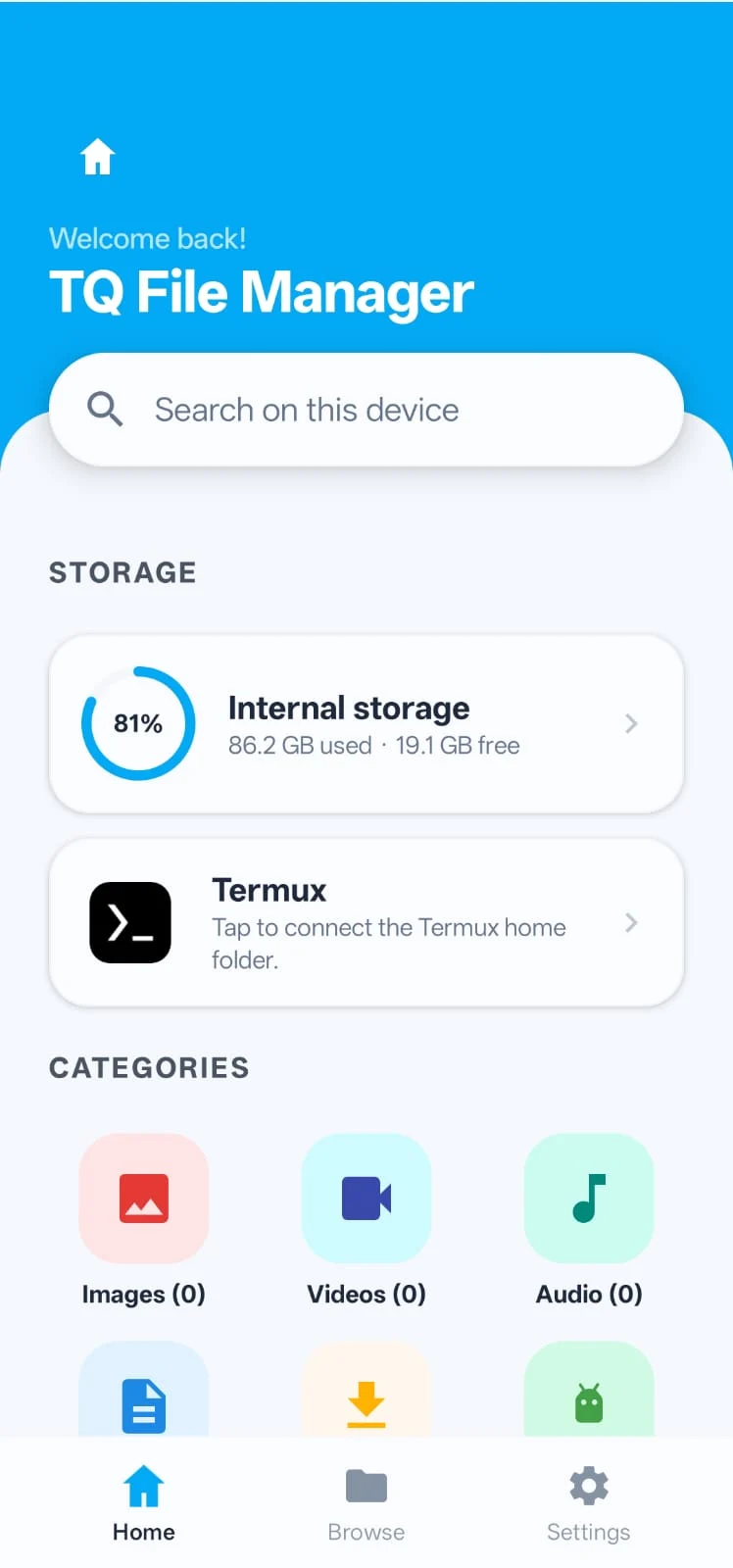
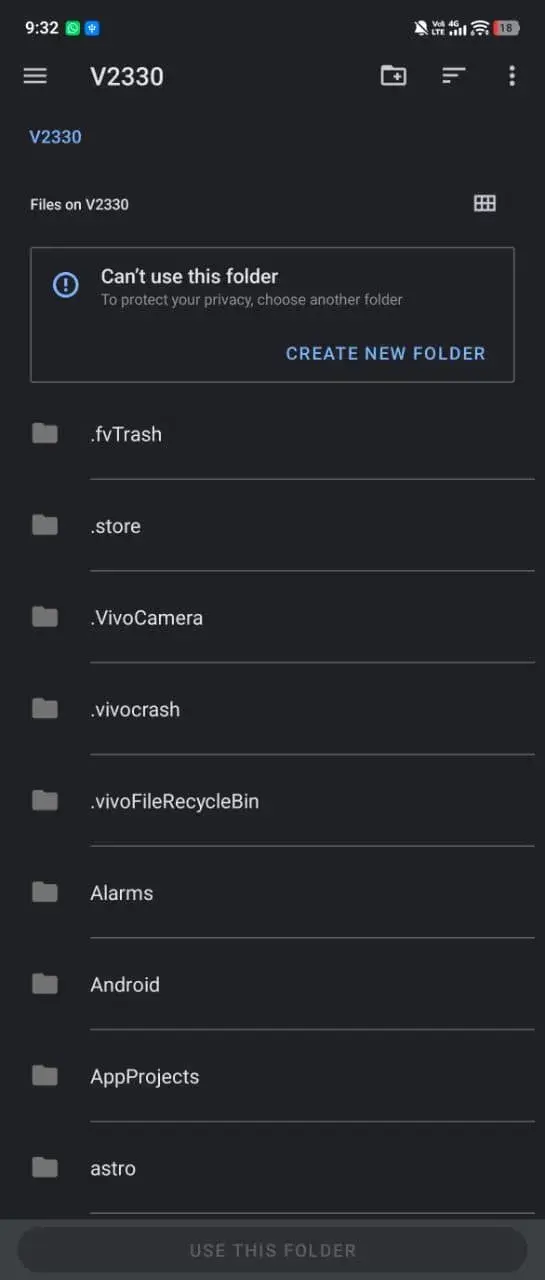
Launch TQ File Manager. On the home screen, scroll down to the Storage section. You’ll see a Termux entry with the message “Tap to connect the Termux home folder.”
Tap on it to begin the folder access setup process.
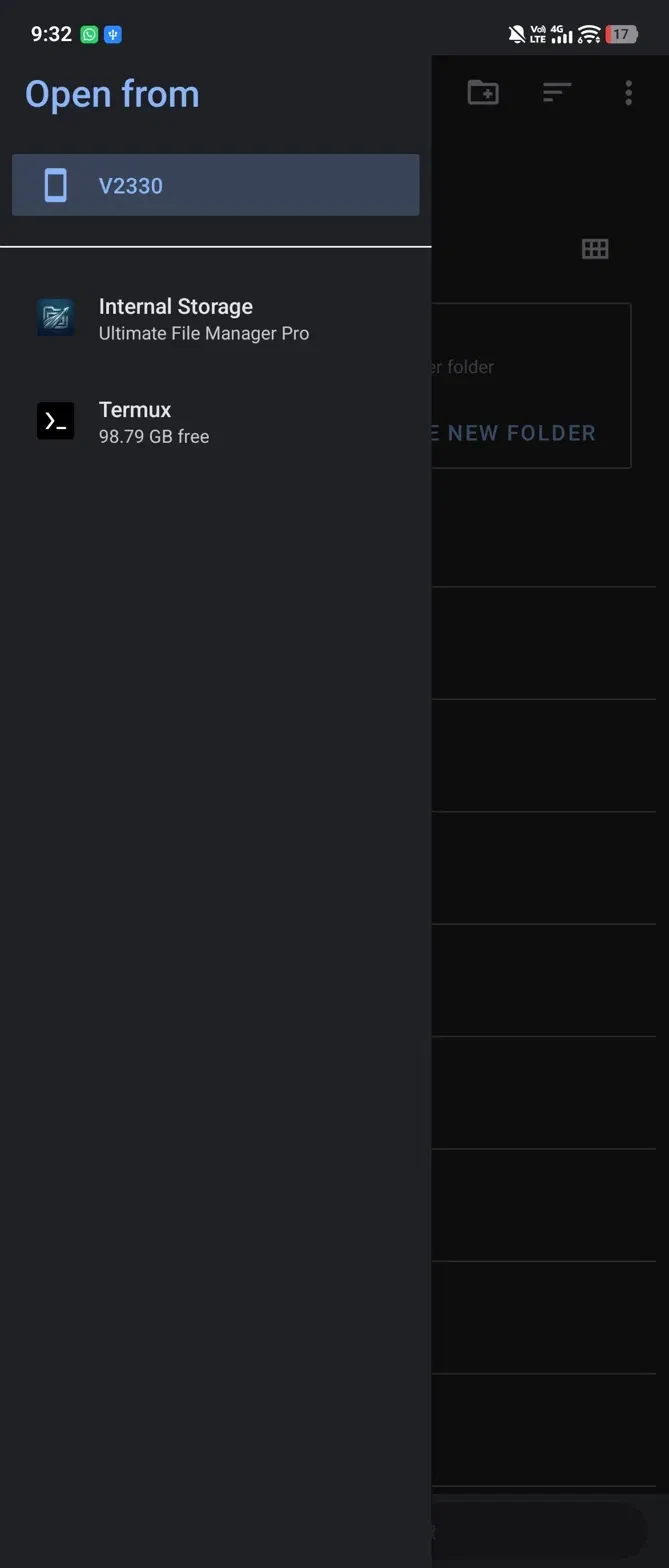
A side panel labeled “Open from” will slide in. You’ll see two options: Internal Storage and Termux.
Tap on Termux (showing 98.79 GB free in the example) to navigate into the Termux file system.
You’ll now see Files from Termux, typically showing a .config folder. This confirms TQ File Manager has found your Termux home directory.
Tap the “USE THIS FOLDER” button at the bottom of the screen to grant permanent access.
.config folder may appear at this stage — that’s normal. Your full Termux directory will load after you grant permission.
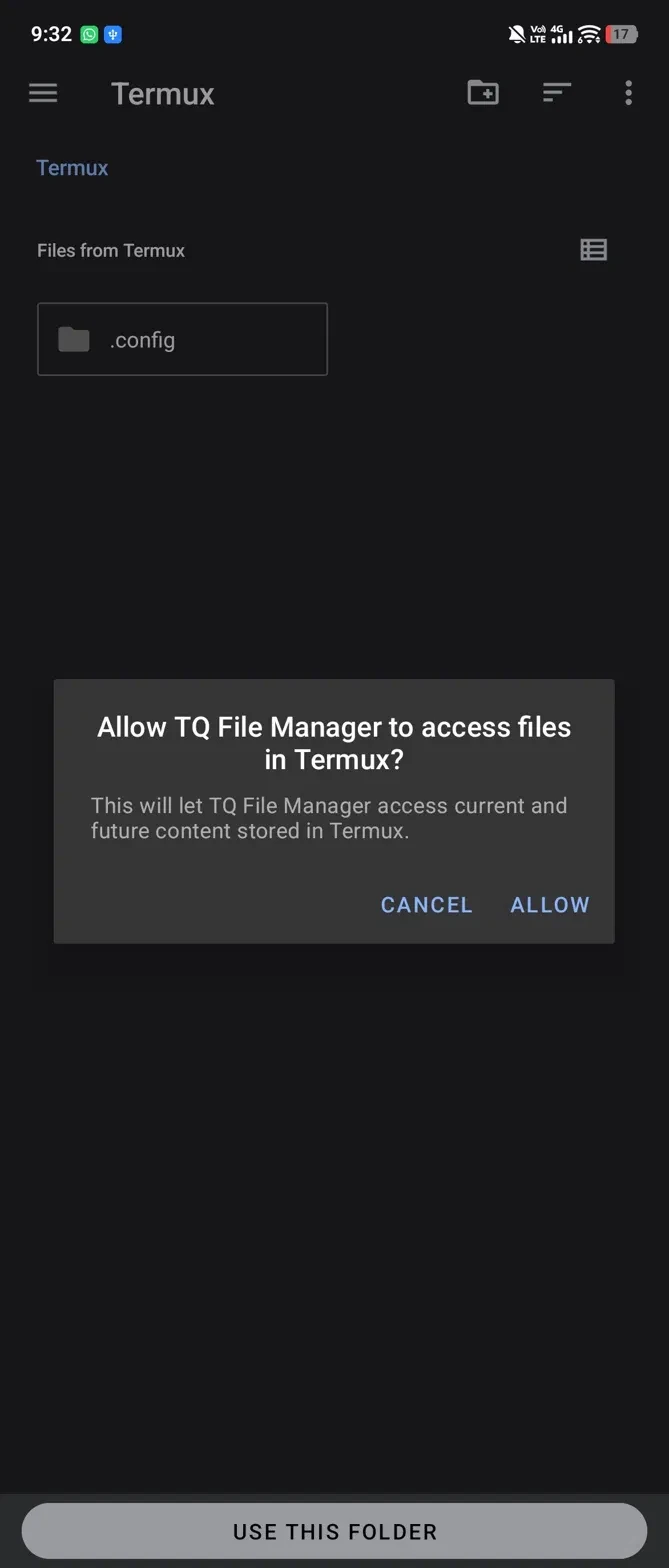
Android will show a permission dialog: “Allow TQ File Manager to access files in Termux?”
Tap ALLOW. This grants TQ File Manager access to all current and future content stored in your Termux home folder.
You’re All Set!
TQ File Manager can now browse, manage, and edit files inside your Termux home directory. Navigate to the Termux section anytime from the Storage panel on the home screen.