Unlock 120 FPS
in 4.4 Update
Step-by-step guide to enable 120 FPS in Global using the 120 FPS File method with GFX Tool.
Get the 120 FPS FileWe use the Experimental method to unlock 120 FPS — a bypass that is currently active. Once the game patches this bypass, there is a chance of getting termination. Proceed with caution and at your own responsibility.
It is recommended to reset the 120 FPS after every game session. Unlock → Play → Reset after play. Do not keep 120 FPS enabled — always reset when you are done playing to stay safer.
Download Files

Installation Guide
Download the 120 FPS File
Tap the button below to save the latest 120 FPS file for PUBG Mobile Global 4.4 to your device.
Install TQ File Manager
Required to access and write to the game’s protected data folder. Install it from Google Play before proceeding.
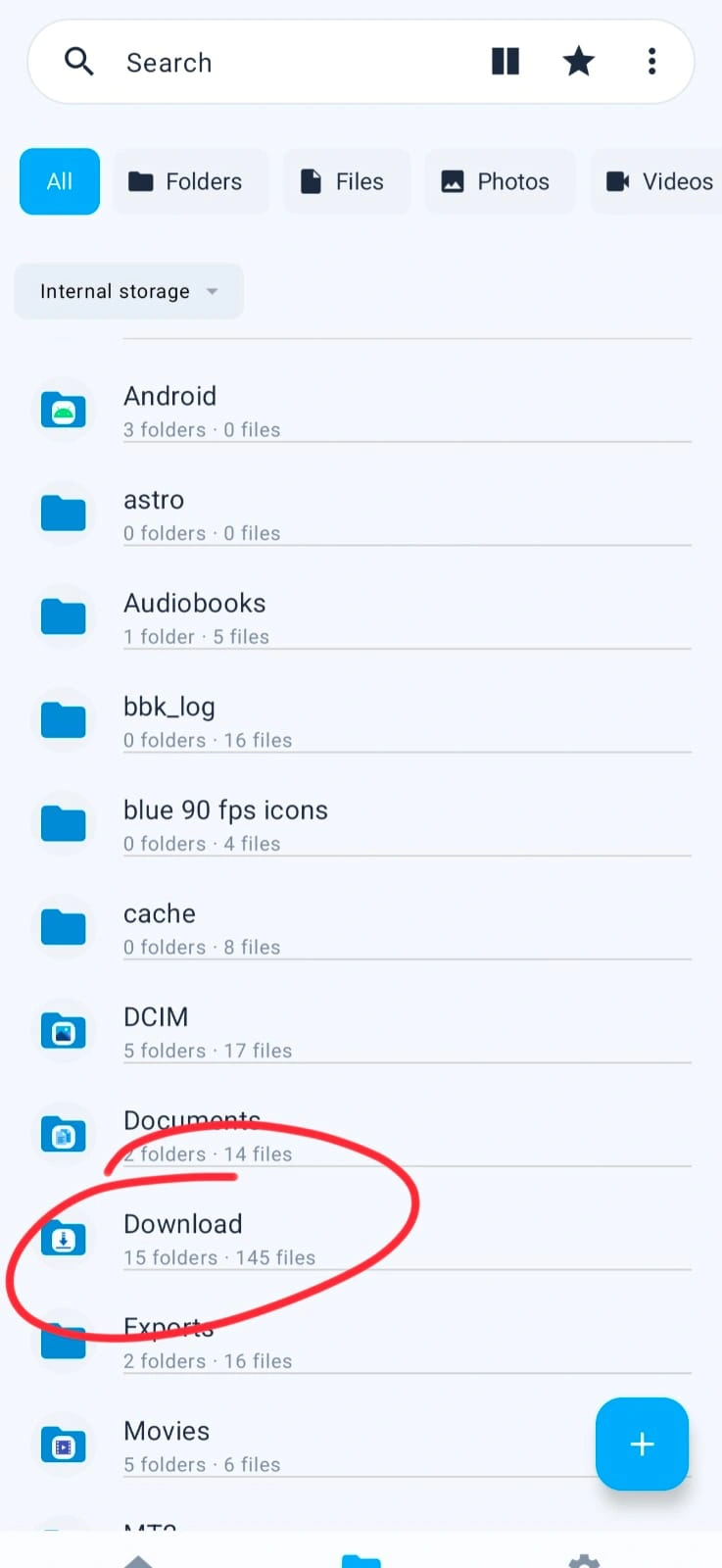
Open TQ File Manager
Launch TQ File Manager and navigate to your Downloads folder (or wherever you saved the 120 FPS file).
Connect with Shizuku
Make sure Shizuku is running and the root bridge is connected before proceeding — you’ll see it marked ACTIVE in the GFX Tool app.
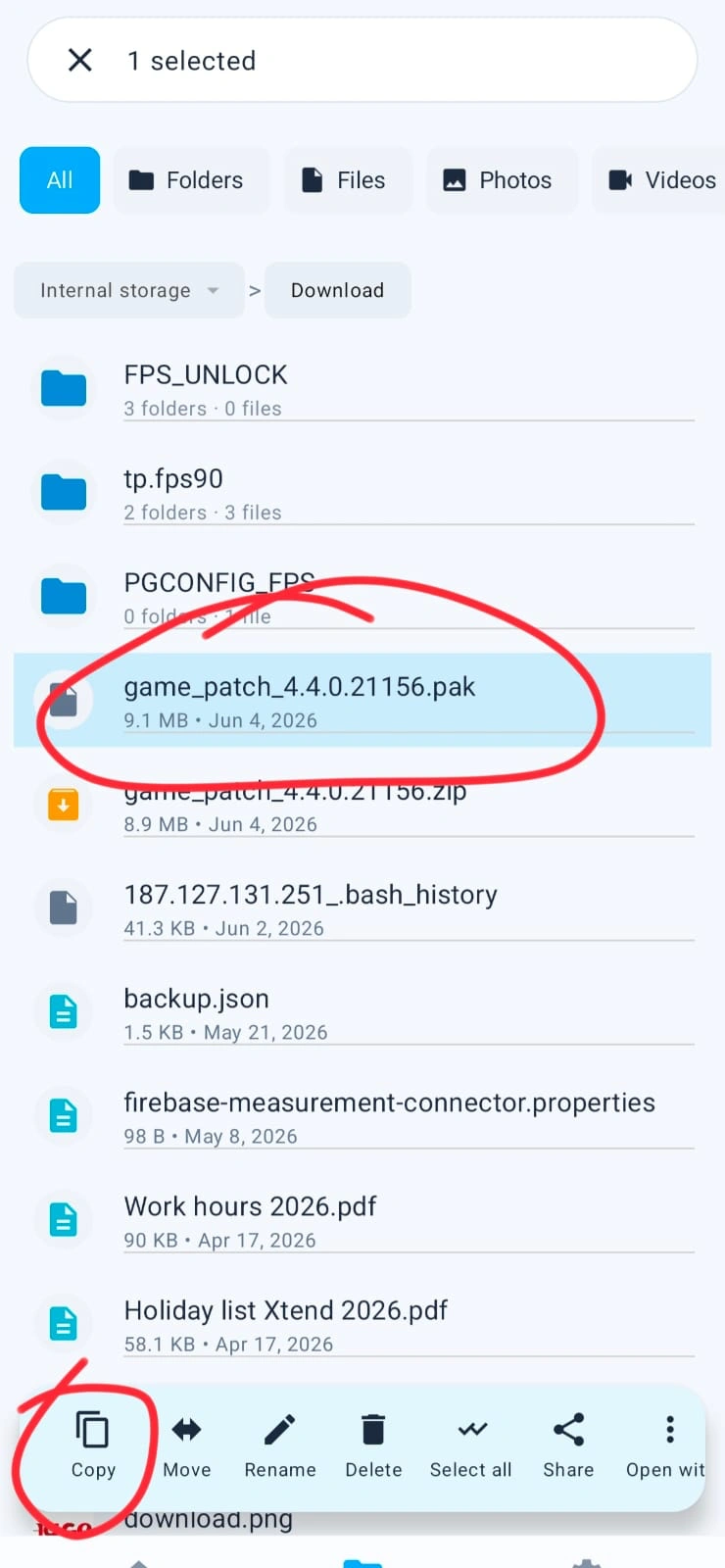
Copy File to puffer_temp
Copy the 120 FPS file and paste it into this folder path inside TQ File Manager:
Launch the Game
Open Game normally.
You may not see 120 FPS on the first launch — this is expected. Continue to the next step.
Start a TDM Match & Check Settings
Start a TDM match, then go to:
The 120 FPS option should now appear in the Graphic Setting. Enjoy smoother gameplay!
Want to Reset?
Already Unlocked? Restore Original Settings
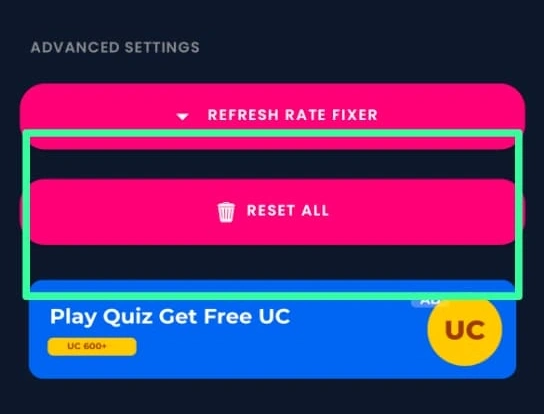
To remove the 120 FPS file and revert to default game settings, follow these steps inside the 120 FPS app. Always reset after each game session — do not keep 120 FPS active permanently.
RESET ALL (highlighted in the image below)