
AdBlocker Detected !

It Seems That You Are Using An Ad Blocker/VPN/Proxy/Custom DNS. Please Consider Disabling It To Support Our Website.

Note : Brave Browser Is Not Supported On Our Website.
Once Youre Done, Refresh The Page.

Skip to content
TQ Tech

TQ Tech

  • Home
  • Guides
  • About Us
  • Contact us
TQ Tech
TQ Tech

Save Editor – Upload SAV
& Custom Unlock Guide

Follow the step-by-step guide below to unlock 120 FPS & custom graphics settings using our Save Editor tool.

Open Save Editor →
01
Select Your Game Version

Choose the game version that matches your installed app. Selecting the correct version ensures your save file is fully compatible and works without errors.
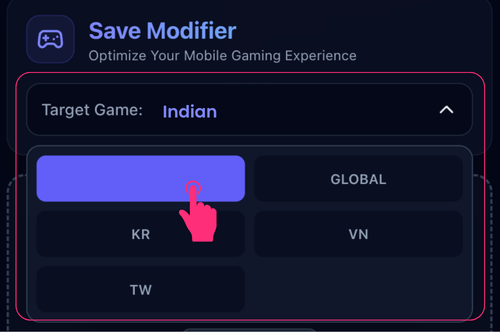
Select Game Version
02
Load Custom Active.sav Optional

By default, a generic save is used. Upload your own Active.sav to keep your existing values like sensitivity and settings — only the FPS you select will be unlocked.
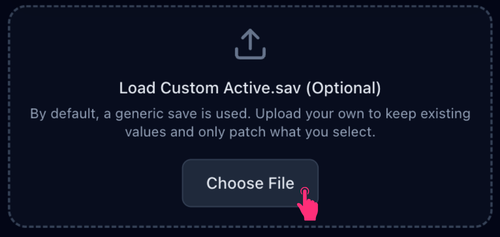
Load Custom Active.sav
💡 Tip: Uploading your own save file keeps your in-game sensitivity and other settings exactly as they are.
03
Select FPS & Graphics Quality

Pick your desired FPS (up to 120 FPS) and graphics quality. Higher settings require a capable device for smooth performance.
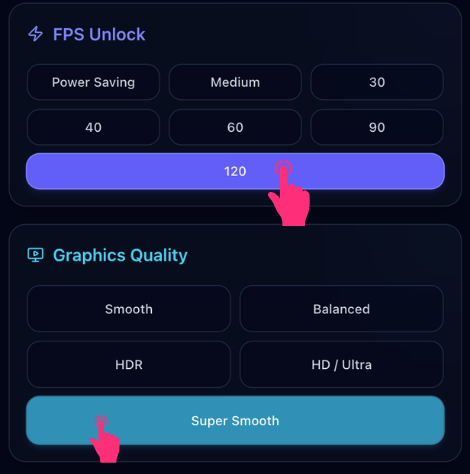
Select FPS and Graphics Quality
04
Select Visual Style & Download

Choose a visual style to match your preference, then download your config file and upload the .zip inside the app.

Classic
Colorful
Realistic
Soft
✅ Final Step: After selecting your style, tap Download Config — then upload the downloaded .zip file inside the app to apply all your settings.

⚡ Ready to Unlock 120 FPS?

Visit the Save Editor now and generate your custom save file in seconds — no PC required.

Open Save Editor →

© Copyright 2026 » TQ Tech

  • Privacy Policy
  • About Us
  • Disclaimer
  • Contact us
  • DMCA Copyright
Scroll to top
  • Home
  • Guides
  • About Us
  • Contact us